LightRAG: low-level and high-level graph retrieval
- Source
- From the RAG & Agents Engineering course
- By
- Sourav Banerjee
- Last updated
- 9 Nov 2026
Questions that connect two policies
What you'll learn
- Explain how LightRAG turns passages into a graph of entity and relationship profiles.
- Compare the low-level route, which searches entities, with the high-level route, which searches relationships.
- Trace which entities, edges and passages each route adds to the context.
- Diagnose a graph that merged two products, lost a relation's direction or kept a withdrawn policy.
Lesson 1 of T13.1 summarised the handbook into a tree, and lesson 2 of T13.1 wrote search clues from a memory of it. Both help with themes. Neither records how two things in the handbook relate.
A Larkspur customer asks How does cancellation affect export? The export passage explains where to click, and the retention passage says cancelled data is kept for 30 days and then deleted. The answer is the link between them: export before the window closes. A flat index may rank the export procedure first and leave the retention rule below the cut, because the procedure never mentions cancellation.
LightRAG stores that link as an edge in a graph, gives it a short text profile, and searches it like any other passage.
Dual-level retrieval
Dual-level retrieval searches two indexes built from one graph: entity profiles for the specific things a question names, and relationship profiles for the themes that connect them. For the cancellation question, the low-level route finds the entities Cancellation and Export. The high-level route finds a relationship profile about data portability. Both routes add evidence to one context.
High-level here means thematic relationships. It does not mean RAPTOR's upper summary levels from lesson 1 of T13.1, or the community reports that Microsoft GraphRAG builds in T13.3. The LightRAG paper (Guo et al., 2024) describes graph indexing with entity and relationship profiles, the two retrieval levels, and adding new documents to the graph without a rebuild.
The graph comes first. The notebook builds it in four stages:


Figure 1: Building the graph. One model call per chunk extracts entities and relationships; merging folds repeats into one node or edge.
Each relationship carries a description and a few high-level keywords. The keywords are what the high-level route searches. At question time a model splits the question into two keyword lists, one per route:
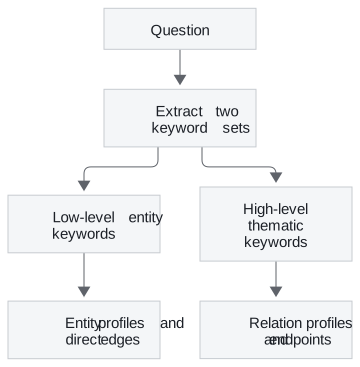
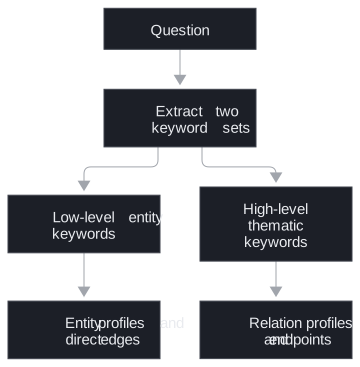
Figure 2: The two routes. Each keyword set searches its own index, then expands through the graph.
The routes differ in what they search and what they pull in after a hit:
| Route | Vector search target | Graph expansion | Passages added |
|---|---|---|---|
| Low level | Entity profiles | Every edge touching the entity | Every chunk the entity appears in |
| High level | Relation profiles | The edge's two endpoint entities | The chunks the relation came from |
Table 1: What each route adds after a hit.
The notebook builds this from scratch with NetworkX, structured extraction schemas and two FAISS indexes; it does not use the packaged LightRAG library. It splits a 33-page climate report into chunks of 1,200 characters with 150 overlap, which gives 78 chunks, and keeps the first 20 to save extraction calls. Every later query can only reach those 20.
To see the merge and the routes without a model, we ran the notebook's merge loop and its selection logic on five scripted extractions from the Larkspur handbook:
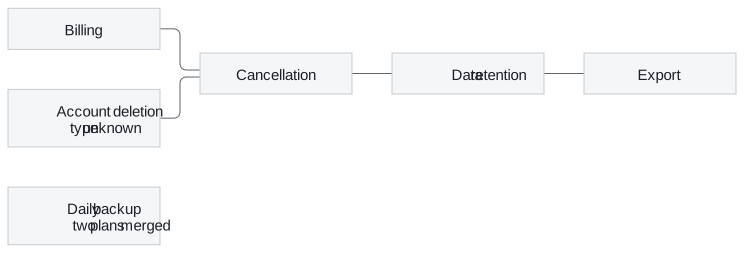
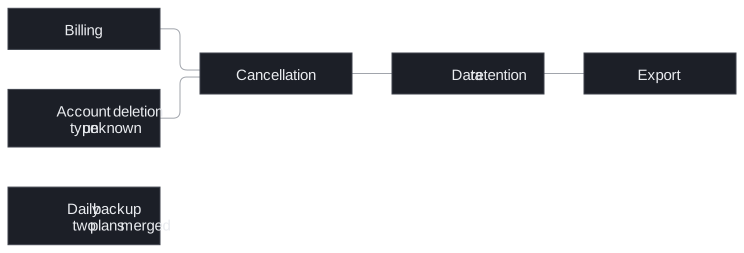
Figure 3: The merged Larkspur graph from the scripted run: 6 entities and 4 relationships.
The merge did four things a reader should expect:
| Extracted | What the graph holds | Why |
|---|---|---|
| "Cancellation" and "CANCELLATION " | One node, two descriptions joined | Names are trimmed and lower-cased before matching |
| Cancellation to Data retention, and Data retention to Cancellation | One edge with both descriptions | The graph is undirected; the second edge merges into the first |
| Account deletion, named only as a relation's endpoint | A node of type unknown with no description | Endpoints missing from the entity list get a stub |
| "Daily backup" for Business (kept 7 days) and "Daily Backup" for Enterprise (kept 30 days) | One node holding both retention periods, with no plan attached | Two things with the same name merge |
Table 2: The notebook's merge on scripted extractions. Notebook code, no model calls.
The last row is the failure that hurts policy answers. Call it a name collision: two things share a name, and their facts merge into one profile. Lower-casing causes it here and cannot fix it. Stable identifiers, with the plan or product in the key, can.
The second row is a different loss. An undirected graph keeps that two things relate and drops which way. The notebook's graph also holds one edge per pair, so a typed model with several relations between the same two entities needs a different graph structure.
Then the two routes, with the vector hits fixed by hand:
| Seed hits | Entities in context | Edges in context | Chunks in context |
|---|---|---|---|
| Low level: Cancellation | 1 | 3 | 3 |
| High level: Export to Data retention | 2 | 1 | 1 |
| Both: two entities and that relation | 3 | 4 | 4 |
Table 3: What the routes select on the scripted graph. Cancellation touches three edges, and all three come in with one hit.
Two things show up in Table 3. First, neighbour sprawl: one low-level hit on a well-connected entity brings in every edge around it. The notebook's defaults are four entity hits and four relation hits; those are seed counts, not a bound on the context. In a full handbook graph, an entity such as Cancellation touches every policy that mentions it.
Second, the low-level route adds the edges around a hit but not the entity profiles at their far ends. In the low-level row, the relationship block mentions Billing and Account deletion, and the entity block describes only Cancellation. The passages behind those edges do come in: every chunk a relation came from is also recorded for both its endpoints. Check that invariant in your own build before relying on it for provenance.
Combine both routes with their source passages, remove duplicates and apply a context budget before generation. An edge description can help find a policy. It cannot replace the policy's qualifiers, which live in the passage.
In practice: Larkspur's graph
For the Larkspur handbook, a LightRAG index would follow these rules:
- Key entities by stable identifier, with the plan or product in the key, and keep Business and Enterprise daily backups apart.
- Keep relation direction where it carries meaning, such as cancellation starts retention.
- Store the source passage and version behind every node description and edge.
- Limit graph expansion to evidence the asker may see.
- When a policy is withdrawn, recompute the merged profiles as well as removing the passage; the old wording survives inside node and edge descriptions.
To evaluate the routes, run entity-only, relationship-only and combined retrieval on the same precise and cross-section questions. Inspect answer support, source coverage and context size. Count extraction failures and indexing calls apart from query cost: the notebook skips a chunk whose extraction fails and continues, and a graph with plausible labels can still miss the relationship a question needs.
Run the notebooks
The code for this lesson is in these notebooks. Colab runs one in your browser: install the packages its first cell imports and set the API keys it reads. To run every notebook as written, clone the repository and use its uv environment.
| Notebook | GitHub | Colab |
|---|---|---|
| Light RAG | Open on GitHub | Open in Colab |
Key Takeaways
- LightRAG runs two routes over one graph: low-level search over entity profiles and their edges, and high-level search over relationship profiles and their endpoints. Both feed one budgeted context with the source passages.
- Seed counts do not bound the context, because one well-connected entity brings in every edge around it. Set a budget after expansion.
- Merging by lower-cased name collides things that share a name, and merged profiles keep old wording after a source is removed. Use stable identifiers, and recompute profiles when a policy is withdrawn.
Check yourself
1. For the question How does cancellation affect export, what does each LightRAG route search for?
The low-level route searches entity profiles for keywords such as Cancellation and Export, then adds every edge touching each hit. The high-level route searches relationship profiles for themes such as data portability, then adds the two endpoint entities. High-level means thematic relationships, not RAPTOR's upper summary levels or GraphRAG community reports.
2. Larkspur withdraws a policy and removes its source passage from the index. Is the graph now clean?
No. Node and edge descriptions are merged across passages, and the old wording survives inside a profile. Recompute the merged profiles from the remaining passages as well as removing the source passage.
3. An Enterprise customer is told that daily backups are kept for 7 days, although Enterprise keeps them for 30. What in the graph causes this?
A name collision. The notebook merges entities by trimmed, lower-cased name, and the Business and Enterprise daily backups became one node whose profile holds both periods with no plan attached. Key entities by stable identifier with the plan in the key, then rebuild the affected profiles.